
Hello everyone! Tim from ChamferZone here. 🙂👋
In this article I will let you know about the different chapters of the all new Revolver Tutorial while highlighting one core element of it: the remesher workflow in Blender! I recommend watching the ~2 minute long chapter overview first. Links to the marketplaces can be found in the description on YouTube.
The Revolver Tutorial is an all new state of the art weapon tutorial featuring Blender as well as Marmoset Toolbag 4 and Substance Painter for baking, texturing and portfolio ready renders. Create a customizable revolver together with two mountable attachment pieces for it: a flashlight as well as reflex scope as you would find in almost any modern video game these days. We built the revolver fully detachable: you can even take the rail off. For that we're going to work with Substance Painter, Marmoset Toolbag 4 as well as Blender where we spend quite a bit of time in as we work on our models.
You won't be needing any plugins for Blender that cost money but we will install a couple of excellent free plugins. Documentation is covered in the tutorial and can be seen here in case you want to take a look.
Chapter 1 - Blender: Modeling, Unwrapping & Baking Preparation
As we work on our models we will make use of proven modeling techniques, modifiers, free plugins as well as careful studying reference images to make sure we catch even the smallest details.
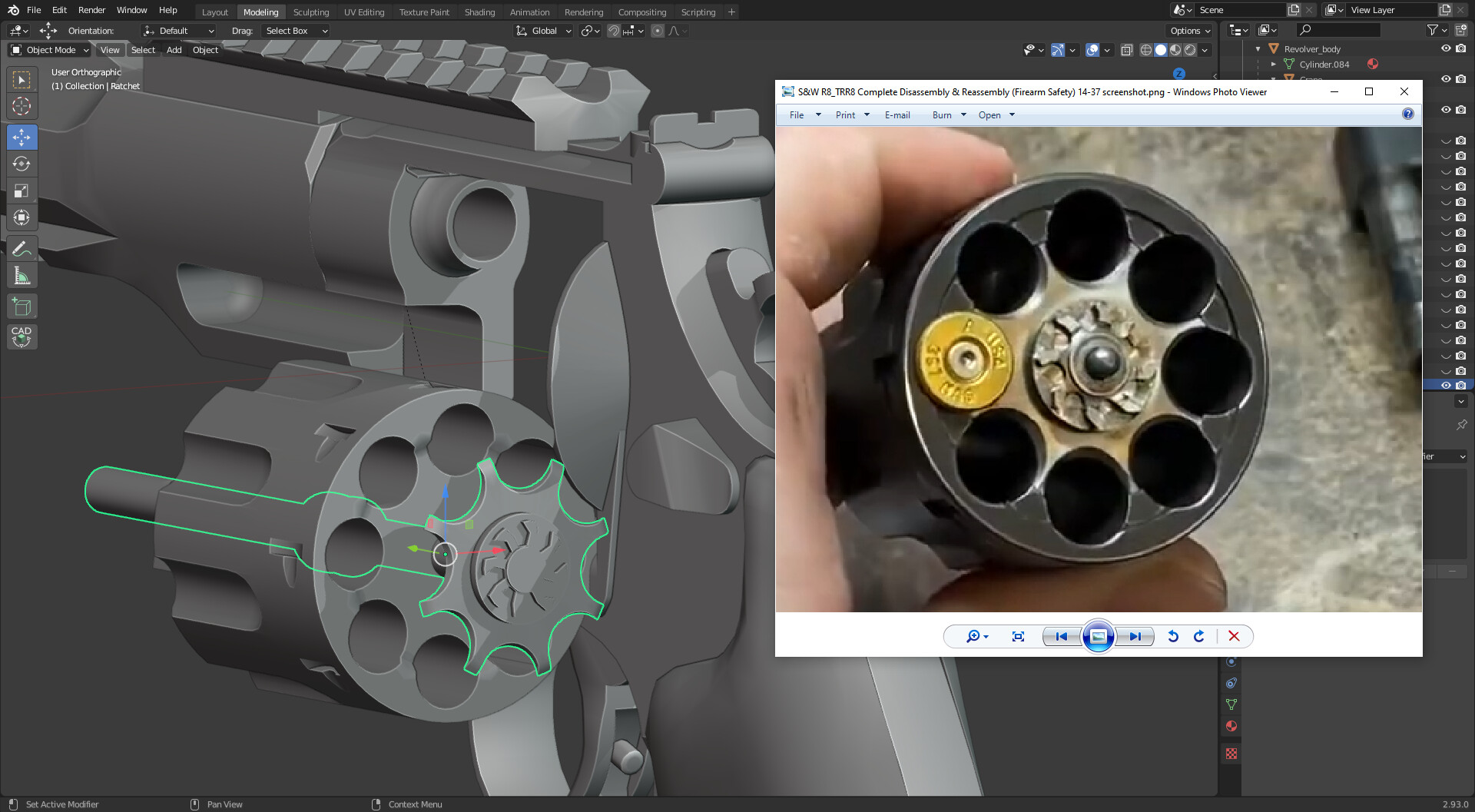

Once we get to the highpoly part we gonna make use blender's remesher capabilities which is an amazing way to create highpoly models in a modifier based and non destructive environment and with excellent results.
This workflow is not necessarily new but so far a lot of people would make use of Zbrush to get this result through dynameshing the geometry there.
Thanks to the remesher modifier we can now do all of this in Blender with the exact same results based on direct comparisons. This saves precious time and keeps it all to one software without having to import/export back and forth.
Let's take a look at how it works and how it compares to the traditional sub-d modeling workflow.
..which by the way we can still make use of of course. Just because we have remesher doesn't mean we can't combine it but to be honest after getting accustomed to remesher there are not too many scenarios where I don't want to make use of it.
Here we have a simple Sub-D comparison to remesher while using the exact same topology without any extra support loops. If you are familiar with 3D modeling you probably know that cylindrical elements with extruded/intruded parts can be quite unforgiving when it comes to pinching:
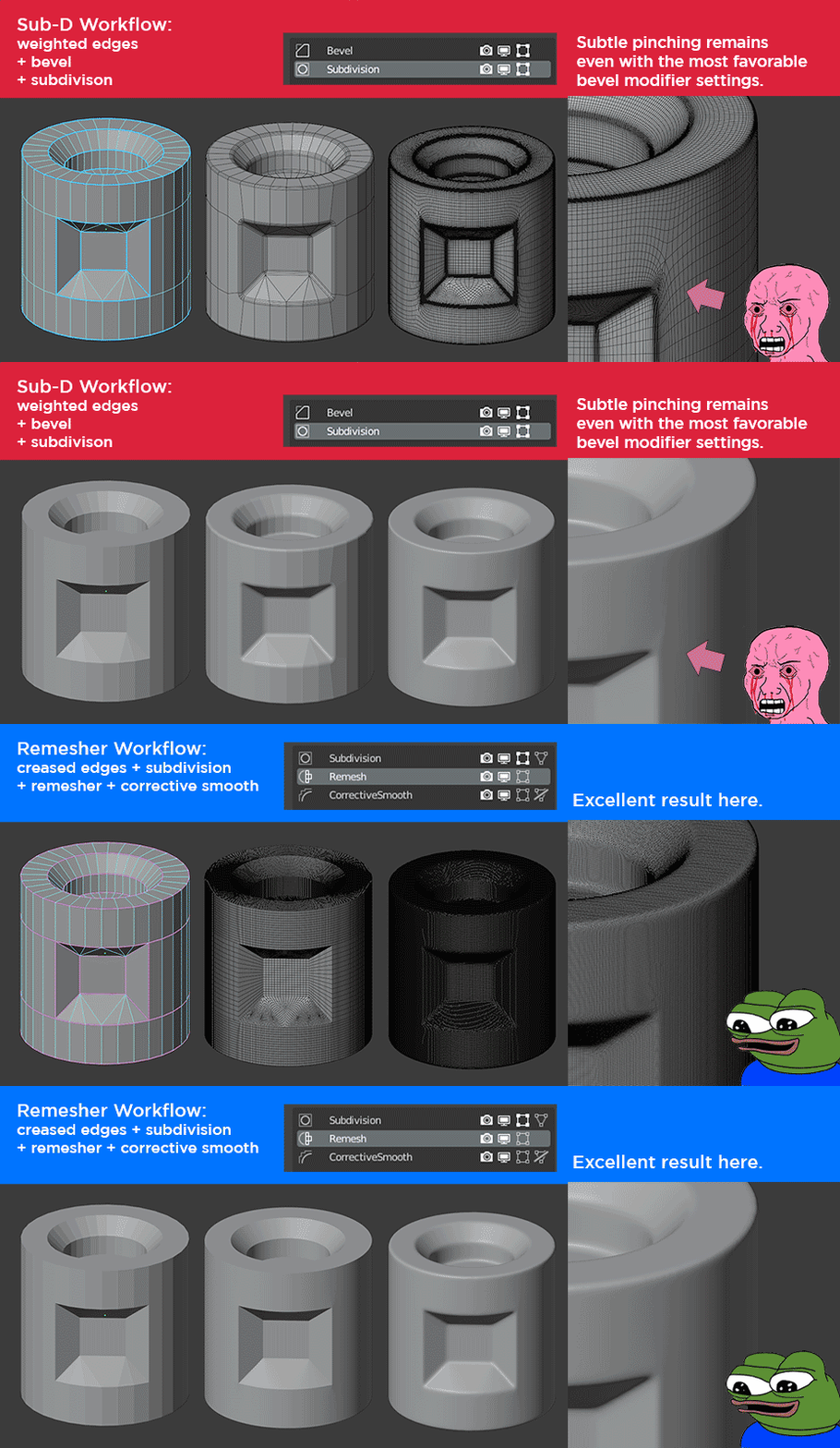
Steps for the traditional Subdivision Workflow:
- For the sub-D approach the way we work is to define hard edge seams where we want to smooth our borders
- Adding the bevel modifier modifier to get support edges and then
add a subdivision modifier (turbosmooth) in order to make it a "high poly"
The disadvantage of sub-d modeling is that we always have to be considerate about pinching, intersections, overlaps etc.
With the sub-d workflow we spent a lot of time trying to eliminate these occurring issues which cost us precious time and effort. Of course there are a lot of cases where we can still apply it but for more complicated hard surface geometry it can quickly become a lot of work.
The steps to apply remesher to our models are as follow:
- Adding crease to our edges so that we can tesselate it further with our subdivision modifier and that's also the main difference to consider for this workflow. Remesher does not subdivide our mesh in the traditional sense. If you add remesher to a 12 sided cylinder it will only smooth the individual edges it finds, it won't make it nice and round.
- Once we have this in place we can then add the remesher modifier. Remesher looks at whatever is being offered to it and creates a "voxel" based version out of it.
- The last step is to add the Corrective Smooth on top which then results in our highpoly model. This guarantees an equal and smooth transition throughout the entire object. We can control the hardness around the edges through the corrective smooth modifier amount.
Let's also talk about the disadvantages of the remesher method and how to deal with them.
1. Using the remesher workflow results in long loading times as it "voxelizes" our meshes and currently the way it behaves in Blender is that if you save a scene where you have the remesher stack "active" it will go through the entire loading process again if you reload that scene. That can stack up if you have a lot of pieces and take a few minutes depending on your machine.
Fortunately the solution is simple: all we have to do is toggle the modifiers OFF on our highpoly elements after we applied them. Let's say we have 20 parts on our gun. We go through them one by one, make sure it looks great with the remesher aka. the highpoly model and then we toggle it off as we work on the next one. That way we have the same performance as if we didn't have the modifiers added and we will only reactivate them later once we get to the export part. That solves the performance issue entirely.
2. The second disadvantage is that we quickly can get millions of polygons per object (especially on more complicated/bigger pieces.
In order to still be able to handle so many polygons we can make use of the Decimate modifier. It does an excellent job in most cases even if you it to 90% polygon decimation. There might be a few tiny spots where you will see fragmenting so what I do is just adding it to all my objects and later at the end when I export I toggle on/off individual parts to see if I can still export/bake without any problems.
On the revolver I left it on for quite a few pieces and it does not show on the normal map and even if it does upon zooming in close, I noticed it can look like tiny imperfections which blend nicely with the actual texture.
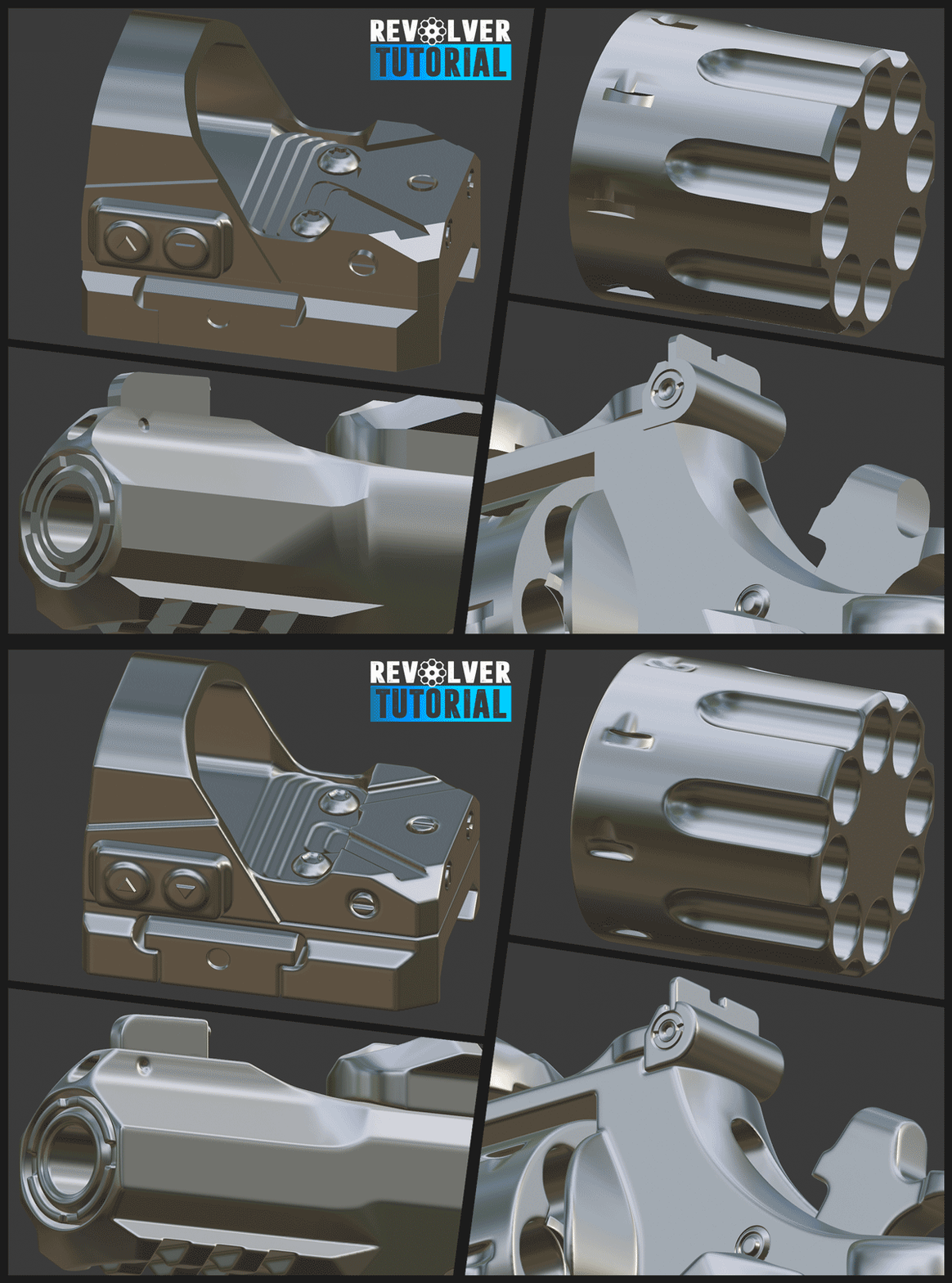
Personally I am gonna make use of this workflow for most of my future work now and I am excited to show you how to best use it as we create the revolver, flashlight as well as reflex scope. The only part where I didn't apply the remesher was the revolver grip due to it's organic nature where simply applying subdivision already gives the right result as well as a few small floating elements.
Chapter 2 - Blender: Unwrapping & Baking Preparation
Blender's unwrapping tools get a bit of mixed reviews and I can understand why as someone who comes from 3DsMax but as always we can navigate around these issues as we wait for future tools being added to Blender. One of the main complaints that I have is that there is no one button solution to straighten out "stripes" from a cylinder. So far this only seems to work with one click if the cylinder doesn't have any different size for the top or bottom cap. However there are ways of doing this mainly by following these steps:

For the most efficient UV packing we make use of the UV Packer plugin which is free for both 3DsMax and Blender and currently does a superb job as you can see here. Consider it a must have plugin for Blender.

After we are done unwrapping our models we will make sure to properly attach, name as well as pivot all our elements to have versions ready for potential in game usages or renders as well as a version that is accustomed for baking and texturing.
Chapter 3 - Baking in Marmoset and Texturing in Substance Painter
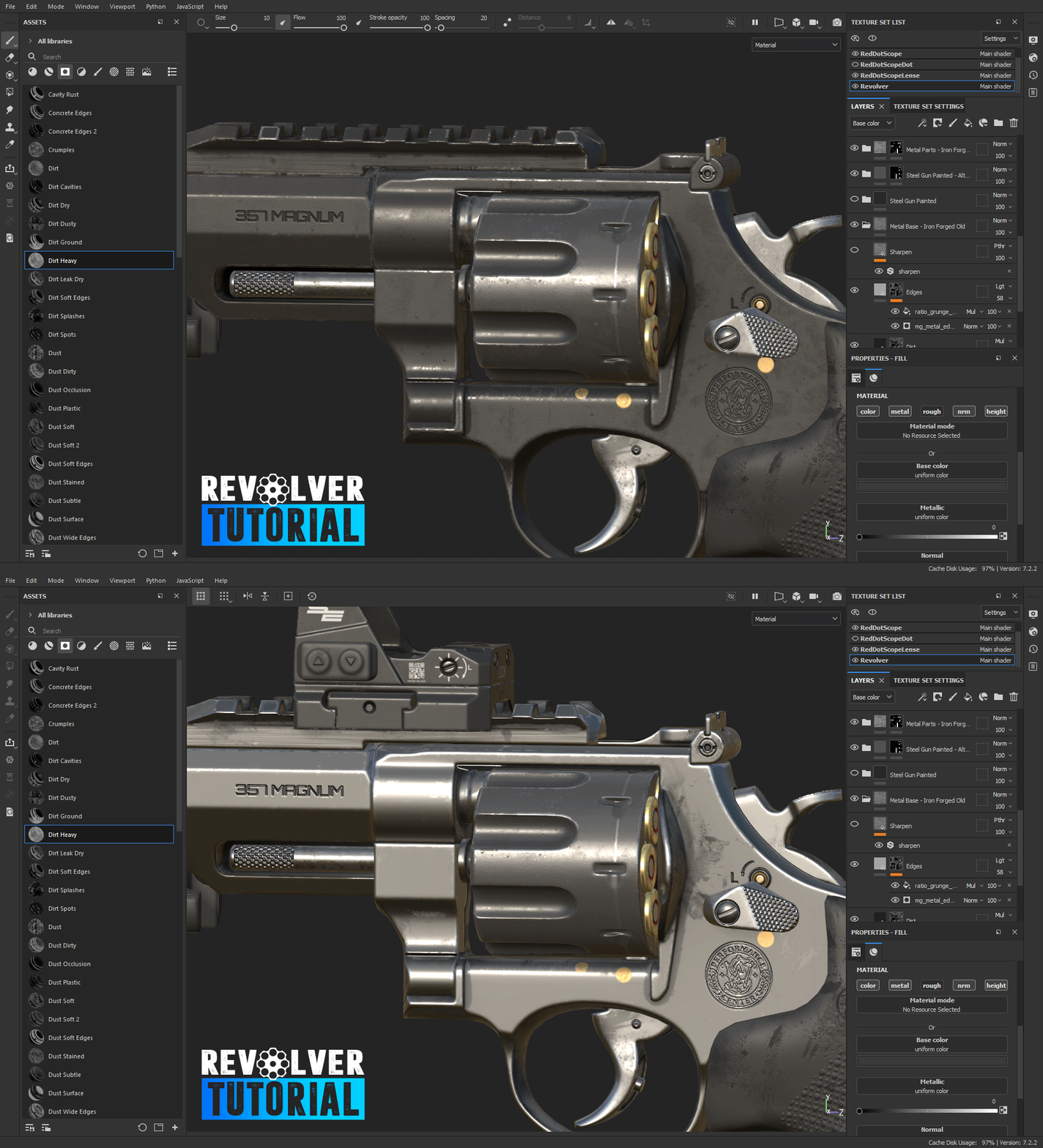
Once we're done with the Blender part we will then export our high and lowpoly parts over to Marmoset Toolbag 4 where we're gonna do baking and then import these maps into Substance Painter where we will create two different texture versions of our revolver, a chrome version as well as a metallic painted version. For that we're gonna make use of all sorts of different materials, smart masks as well as carefully studying different types of wear and tear.
Step 4 Portfolio ready renders
Whenever we're done with our textures we will then revisit Marmoset Toolbag 4 where we're gonna make renders as close to photorealism as possible while making use Marmosets raytracing engine. Learn about how to get excellent results in record time and also how to setup a turntable animation to make your portfolio more interesting.

I am excited to share this tutorial with you, I had a lot of fun working on it and I hope you're also going to enjoy it. Also, if you ever need help: come join us at the ChamferZone Discord where Industry professionals come together with beginners and we all learn and talk 3D (or share memes) together. ;)
Happy modeling, see you in the tutorial and cheers!